
Starting a Build

Greg Avola
Founder of brickd
10/20/18
If a LEGO set is already in your collection, you can start a build in just a few taps. This lets you track build progress, bags, time spent, and share updates with the community.
Step 1: Open the Quick Action Menu
From anywhere in the app, tap the red “+” button in the bottom-right corner.
Then select Build.
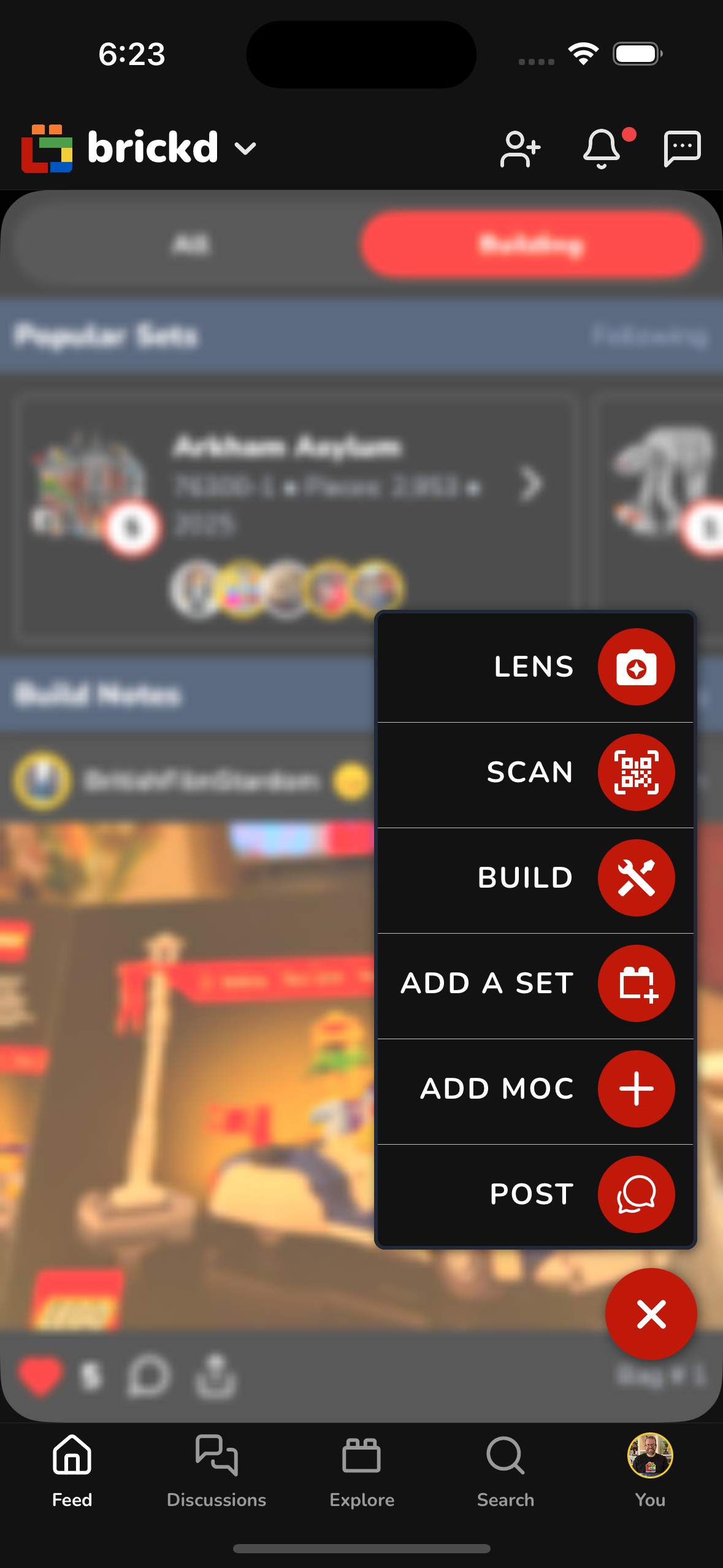
Step 2: Start a Build
You’ll see the Start a Build screen.
From here, you can:
- Search for a set by name or set number, or
- Choose from sets already in your account
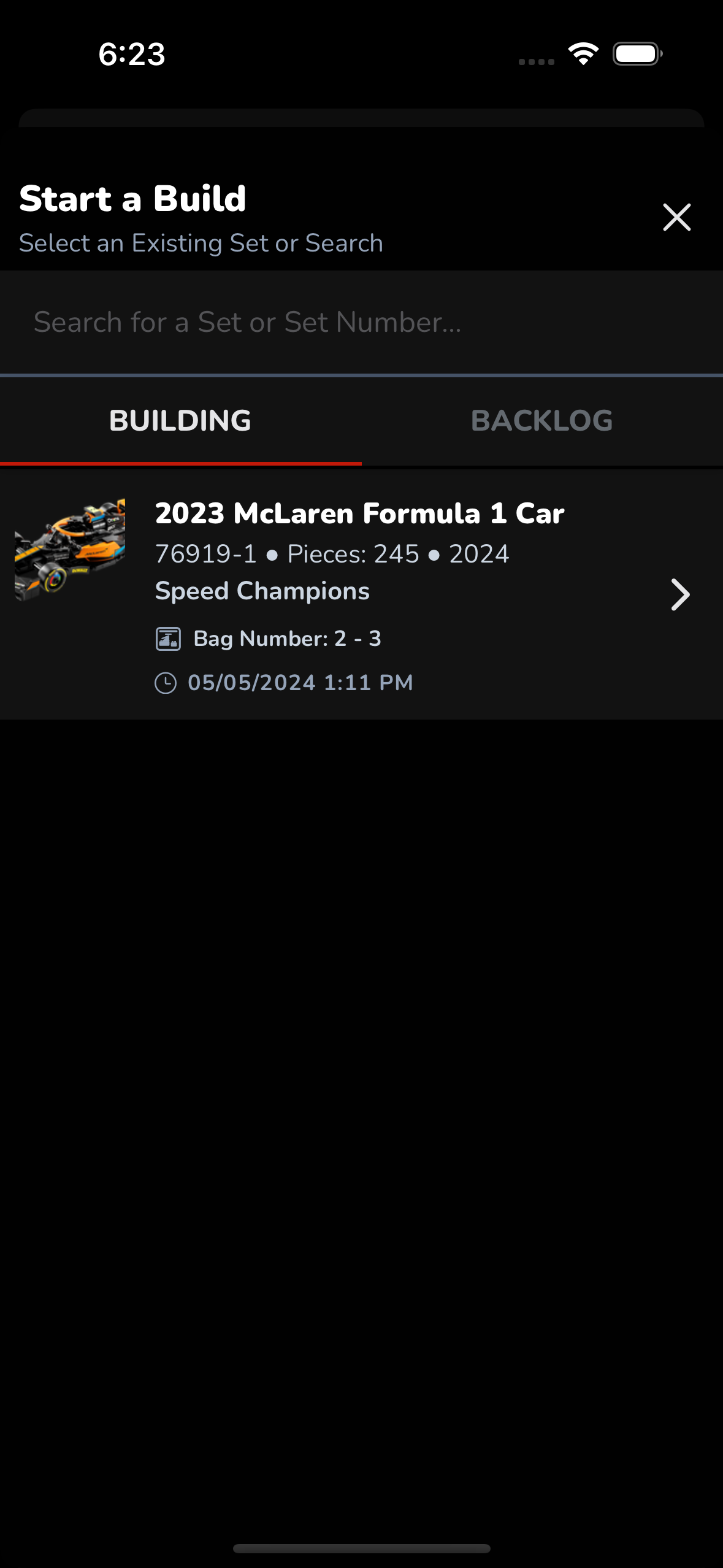
Step 3: Choose Where the Set Lives
At the top, you’ll see two tabs:
Building
- Shows sets you are currently building
- If the set is already in progress, it will appear here
Backlog
- Shows sets you own but haven’t started yet
- These come from your collections (especially Backlog collections)
Tap Backlog to start a new build from a set you already own.

Step 4: Select the Set
Tap the set you want to build.
This will immediately:
- Start the build
- Move the set into your Building state
- Enable bag tracking, build notes, and time tracking
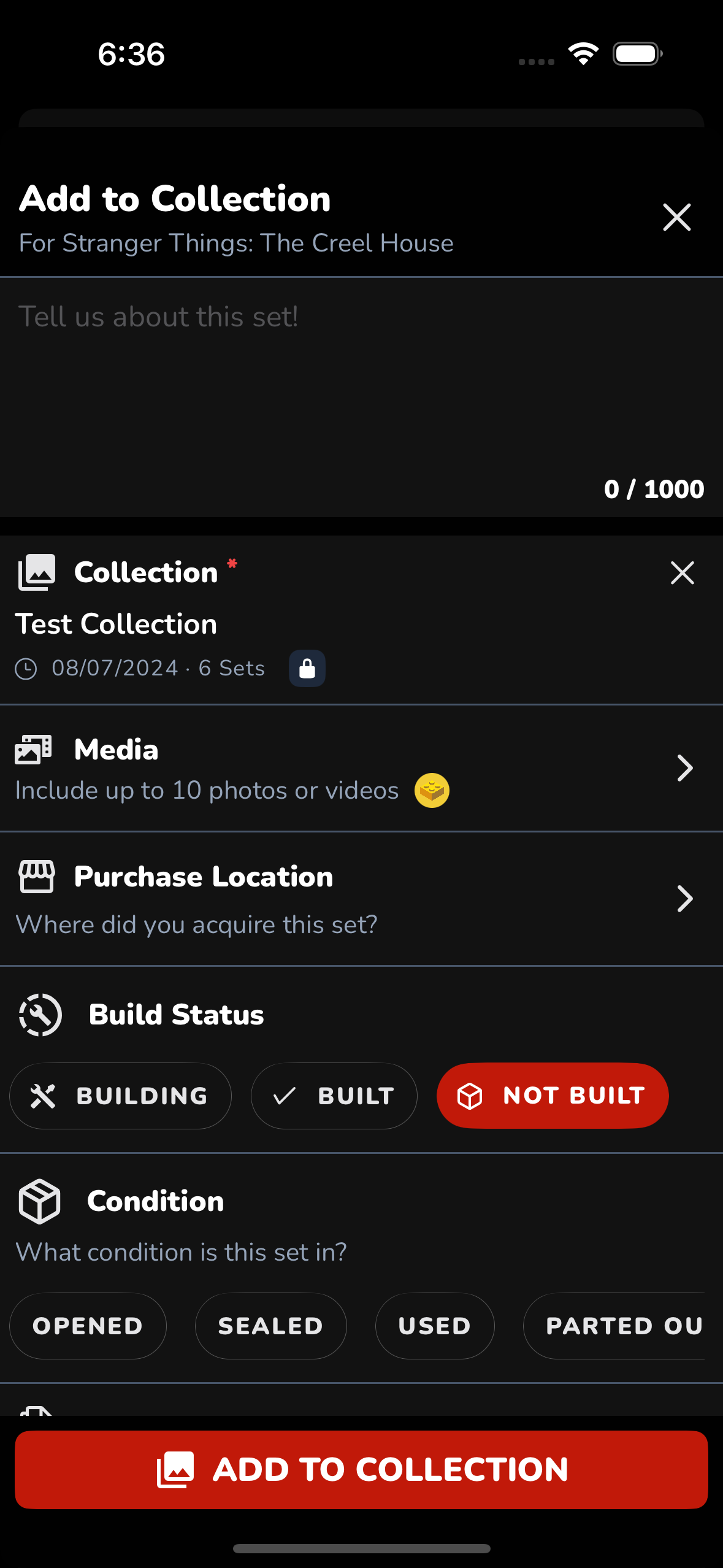
Step 5: Build and Track Progress
Once started, your build will:
- Appear in your feed
- Show current bag number
- Track total build time
- Allow you to post updates as you go
What Happens When You Finish?
When you mark a build as complete:
- The set is marked Built
- It’s added to your completed stats
- If it came from a Backlog collection, it’s automatically removed from that backlog
Quick Tips
- You can only have one active build per set
- Builds work best with sets already added to your collections
- Backlog collections are the fastest way to start builds
That’s it — you’re officially building 🧱