
Adding a Set To Your Collection

Greg Avola
Founder of brickd
10/20/18
This guide explains how to search for a new LEGO set and what you’ll see on the Set Detail page before adding it to your collection or starting a build.
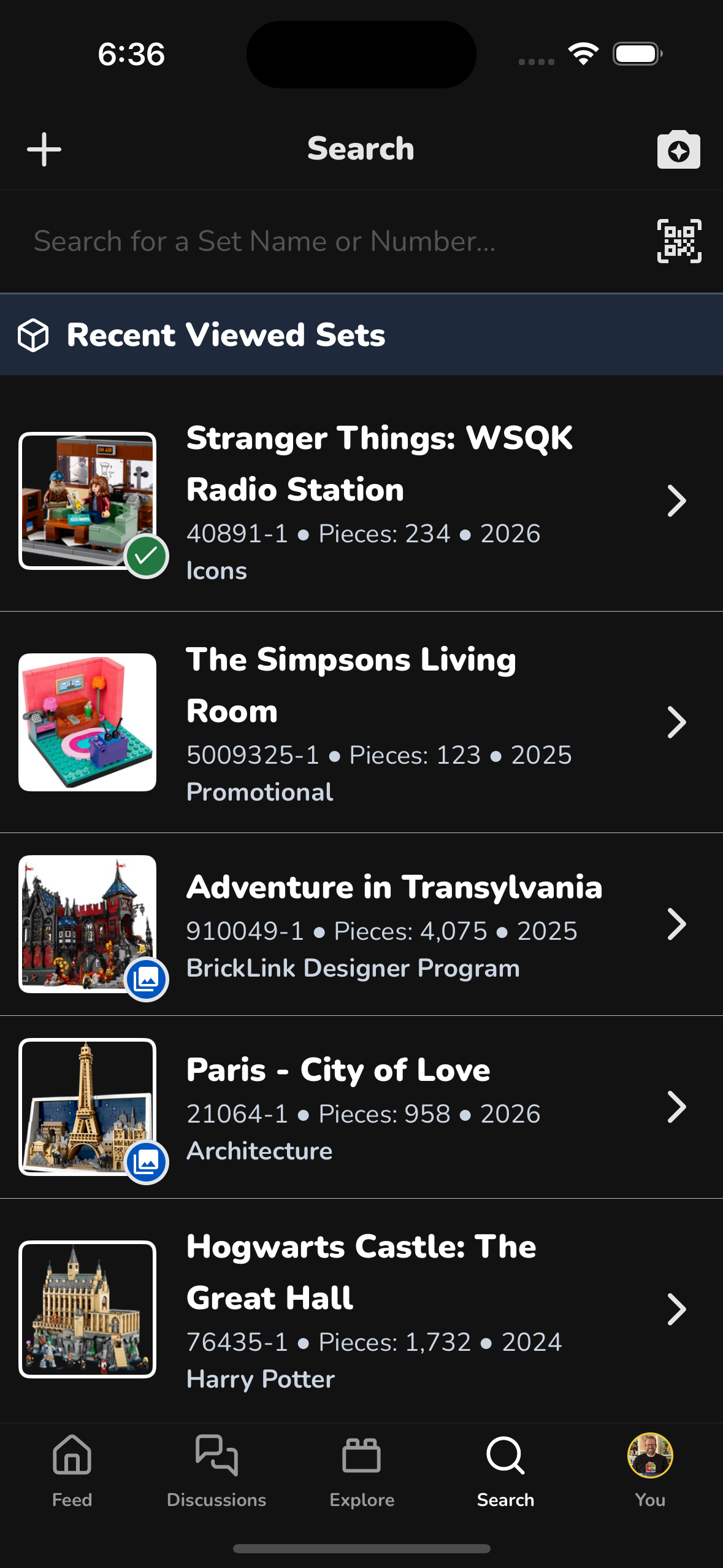
Step 1: Open Search
Tap Search in the bottom navigation bar.
You can search by:
- Set name (full or partial)
- Set number
You’ll also see Recent Viewed Sets for quick access.
Step 2: View Search Results
Search results are grouped by tabs:
- Sets (default)
- Minifigs (if applicable)
Each result shows:
- Set image
- Set name and number
- Piece count
- Release year
- Theme
- Community rating
- Retirement status (if retired)
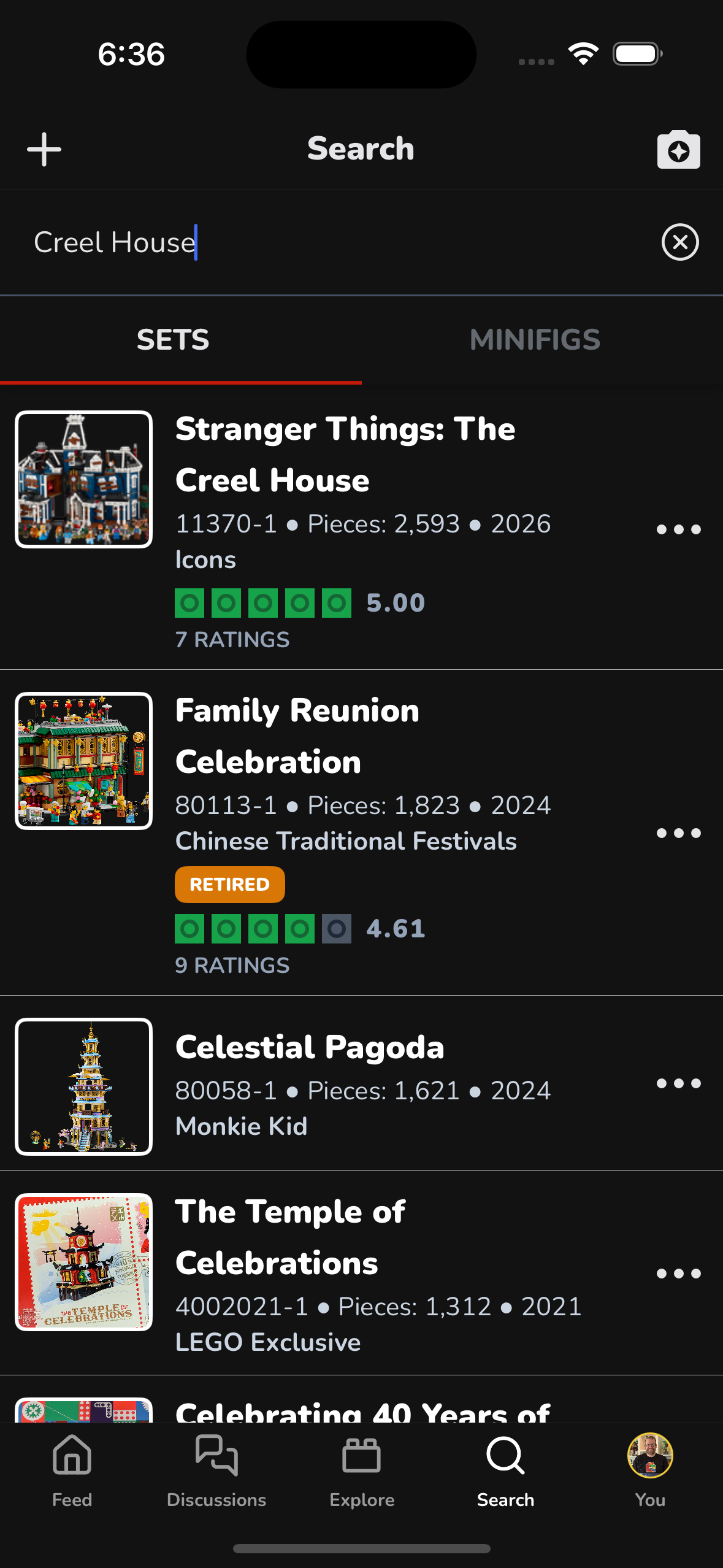
Tap any set to open its detail page.
Step 3: Set Detail Page Overview
The Set Detail page is your hub for everything about that set.
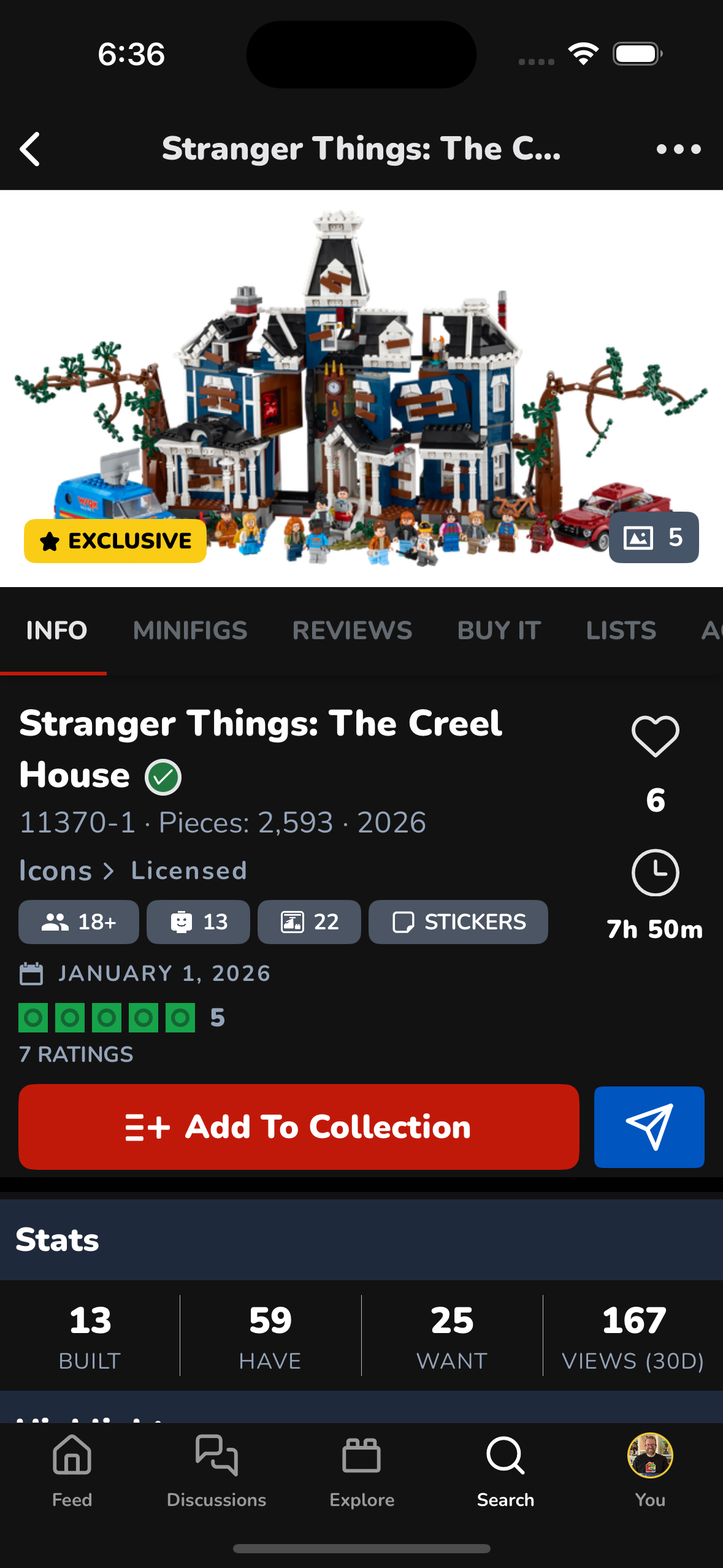
At the Top
- Large set image gallery
- Exclusive or special badges (if applicable)
- Quick access to media count
Key Set Information
You’ll see:
- Set name & number
- Piece count
- Release year
- Theme & subtheme
- Age range
- Minifigure count
- Sticker count
- Average build time
- Community rating and total ratings
Action Buttons
From the set detail page, you can:
- Add to Collection – choose which collection it belongs to
- Start a Build (if already added)
- Share the set
- Like the set
Tabs on the Set Page
Below the main info, you’ll find tabs for deeper details:
- Info – General set details
- Minifigs – All included minifigures
- Reviews – Community reviews and ratings
- Buy It – Purchase options
- Lists – Public collections and lists featuring this set
Stats Section
Shows community-wide stats:
- How many users Built the set
- How many Have it
- How many Want it
- Recent views and engagement
What’s Next?
From here, you can:
- Add the set to a Backlog, Wish List, or Inventory
- Start building when you’re ready
- Track build time and progress
- Share your build with the community
That’s it — you’ve successfully searched for and explored a new LEGO set on brickd 🧱