
Importing Your Collection

Greg Avola
Founder of brickd
Importing your collection from other networks like Rebrickable, BrickLink, Brickset or LEGO Builder App are easy! Simply follow the steps below to help you download your export from that site, and then import into brickd!
Select a Site
Importing from Rebrickable
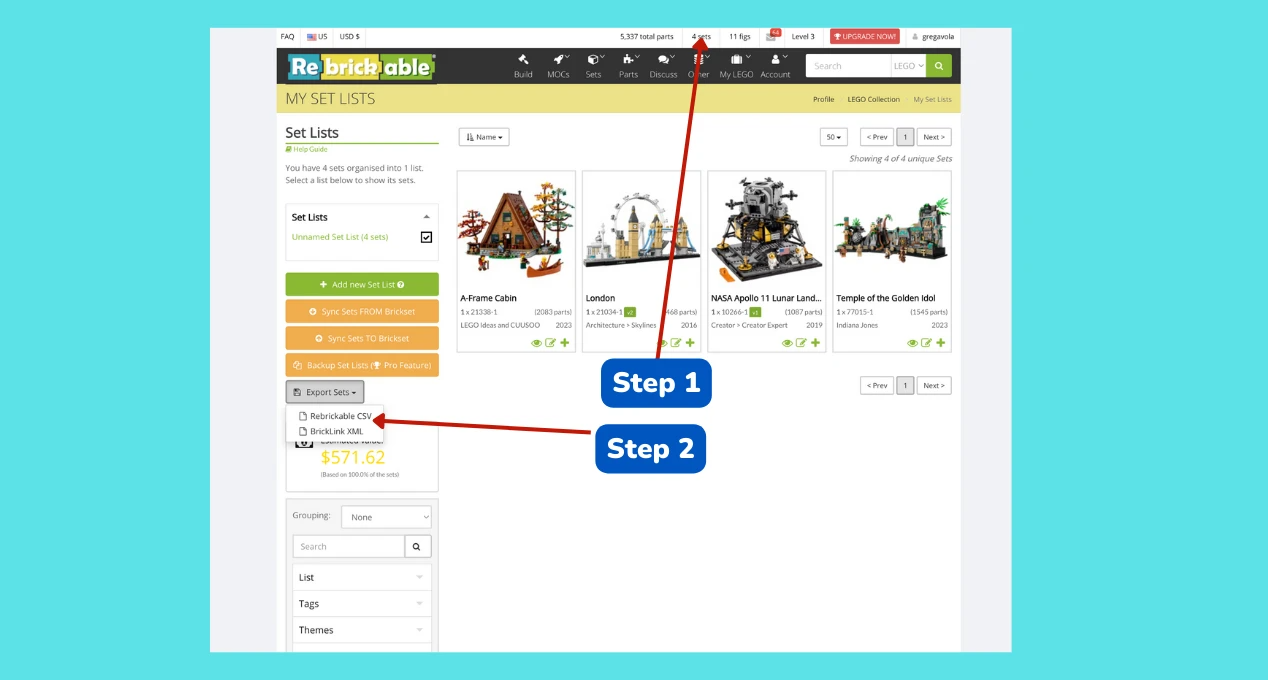
Step 1: Log in to your Rebrickable account, and click the Set Count number into the top header of the site.
Step 2: Click Export Sets and select "Rebrickable CSV".
Step 3: Click here to import via Rebrickable using the CSV you downloaded in Step 2.
Importing from BrickLink
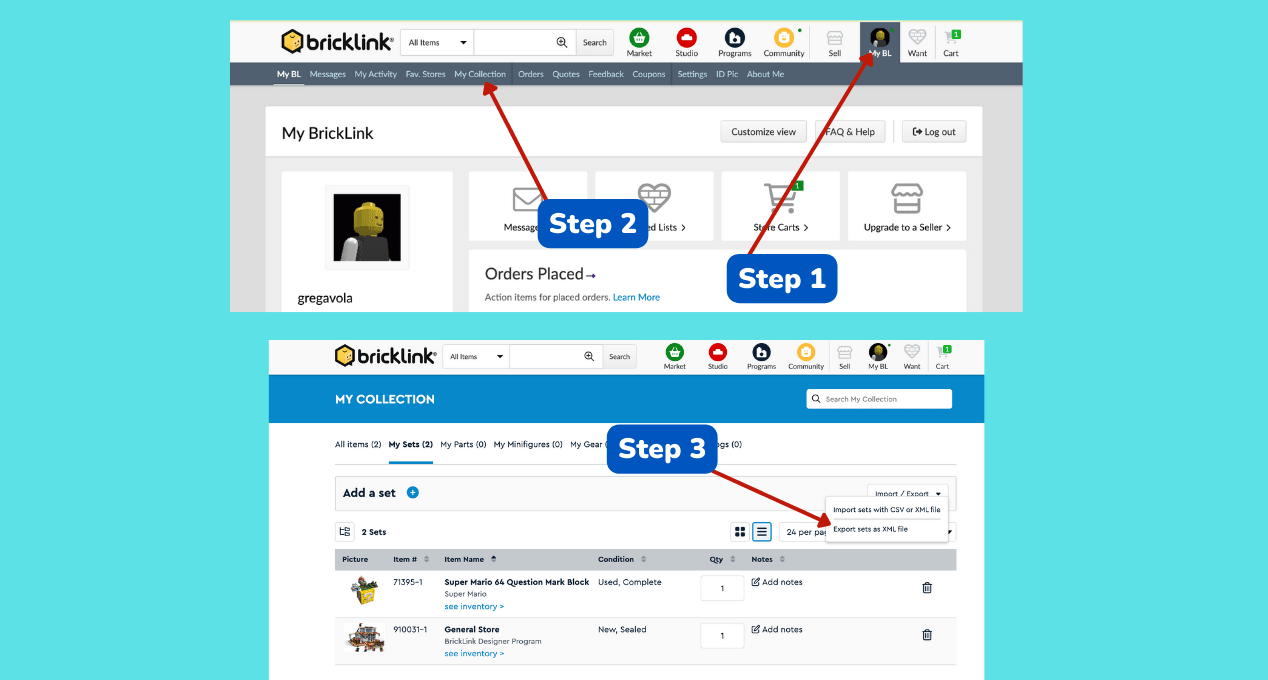
Step 1: Log in to your BrickLink account, and click "My BL on the top right part of the page."
Step 2: Click "My Collection" in the sub navigation.
Step 3: Click Import / Export and select "Export sets an XML file"
Step 4: Save the file a click here to import via BrickLink using the CSV you downloaded in Step 3.
Importing from Brickset
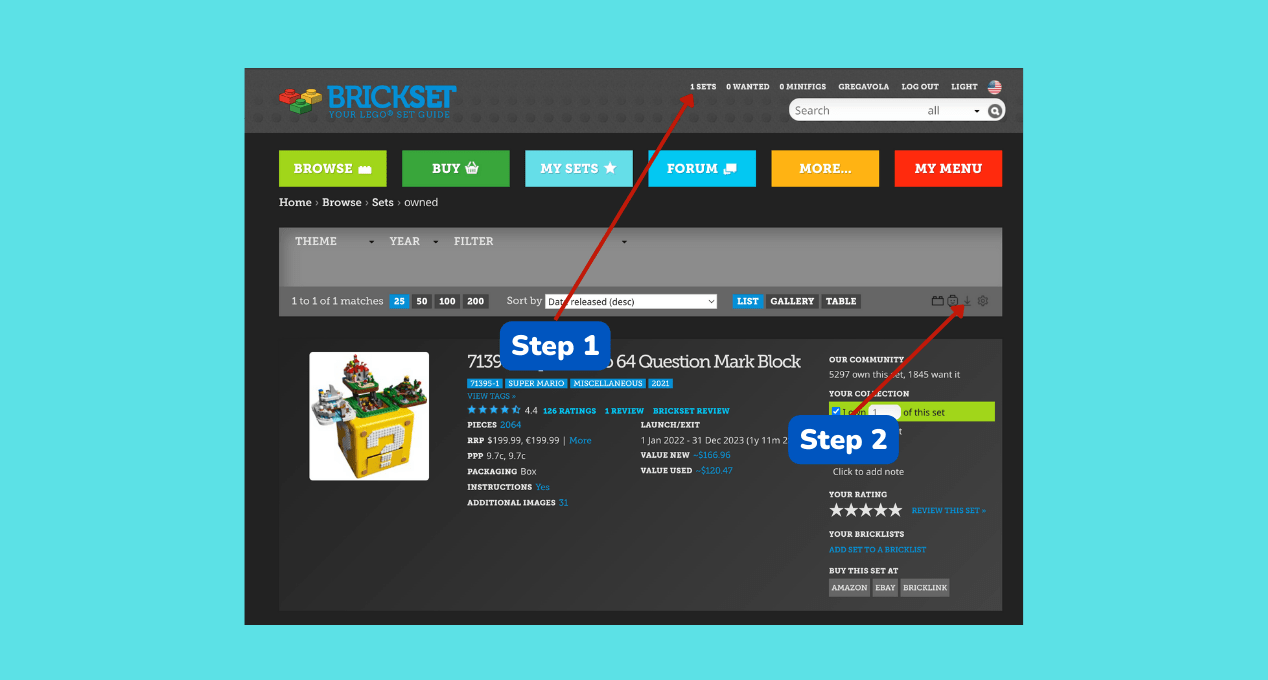
Step 1: Log in to your Brickset account, and click "Sets" on the top
Step 2: Click download icon on the rightside to download a CSV.
Step 3: Save the file and click here to import via Brickset using the CSV you downloaded in Step 2.
Custom Importer
We allow you to upload a custom CSV to import your collection to brickd. All you need to is provide a CSV with the following fields (you must inlude these as headers in the file, they are case senstaive):
SetNumber: The Set Number of the LEGO Set (Required)
createdAt: The date (in ISO8601 format, Optional)
isBuilt: 1 if the set is build (Optional)
Save the file and click here to import via Custom using the CSV you just created.